Oracle DB Project on Visual studio 2010 – Part3 Automated Build

This is a series of 3 Parts to talk about creating Oracle DB Project on Visual studio 2010, try to use it with some good features of the DB Project like refactor columns and lastly to use Automated Build with this project.

Part3: Do Automated Build with Oracle DB Project

Let’s Begin Smile

I will be assuming here that you already have Oracle DB and you were successfully created your Oracle DB project and you can deploy to the DB normally – if not then please see my Part1 and Part2

  1. Right click on your project and choose “Unload project”
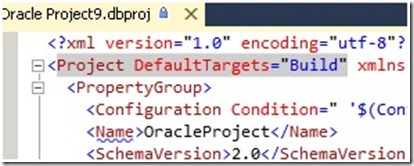
  2. Then right click the project again and choose “Edit {your project name}.dbproj”
  3. Change (ProjectDefaultTargets =” Build”) To (ProjectDefaultTargets=Build;Deploy)
    1. Edit project1
  4. Save file
  5. Right click the project and choose Reload
  6. Now let’s do refactor again and change the column of Dep_ID to Dep_No_ID like the example we did in Part2
  7. Now check in without BUILD the project
  8. Go to the Team Explorer Tab
  9. Right Click Builds and choose New Build Definition
  10. for the example choose “Manual” in the trigger panel
  11. Now the coming part is the most important part
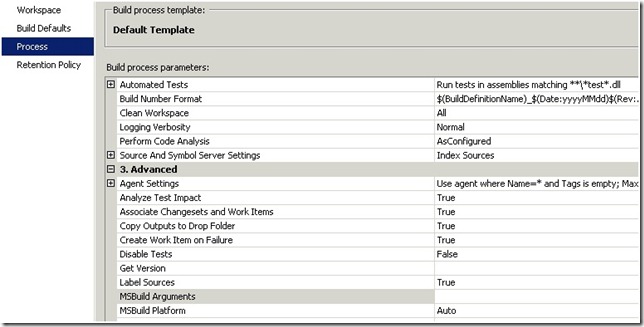
    1. In the process panel, expand advanced
    2. Process panel in build defination
    3. We will now put an argument that will be used by the build process to deploy the DB in the automated buil
    4. We need to add this in the MSBUILD Argument (change it to the right connection you have)
    5. /p:TargetConnectionString=”Data Source=ORCL;User ID=username;Password=UserPassword;Unicode=True”
  12. Save build
  13. Right click the build and queue it

Now you have successfully made Automated Build with Oracle DB Project

Posted in Oracle DB Project, Visual Studio 2010 | Tagged , , , , , , , , | Leave a comment

Oracle DB Project on Visual studio 2010 – Part2 Refactor

This is a series of 3 Parts to talk about creating Oracle DB Project on Visual studio 2010, try to use it with some good features of the DB Project like refactor columns and lastly to use Automated Build with this project

Part2: Refactor your schema and see how visual studio handle it

I made the below example on Sample DB “HR” that comes with Oracle Enterprise 11g R2

Let’s Begin Smile

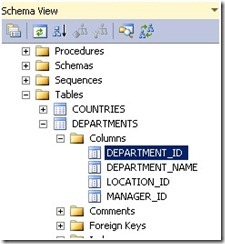
  1. Open Schema View
  2. Here I will refactor the column “Department ID” to “Dep ID”
    1. Schema View
  3. Right click on “Department ID” and choose Refactor –> Rename
  4. Change the name to Dep_ID
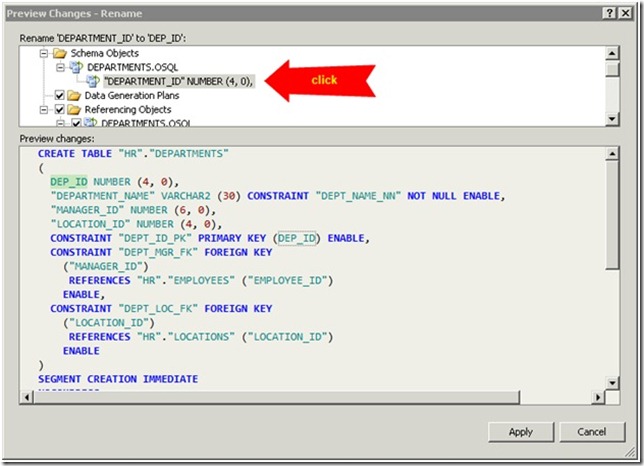
  5. if you are checking the check box of “Preview changes” then by clicking on OK will show up the “Preview Changes” screen
    1. preview changes
  6. Click on apply then rebuild the application but don’t deploy it yet
  7. Let’s see if we made a schema comparison between we we have now and what is on the server
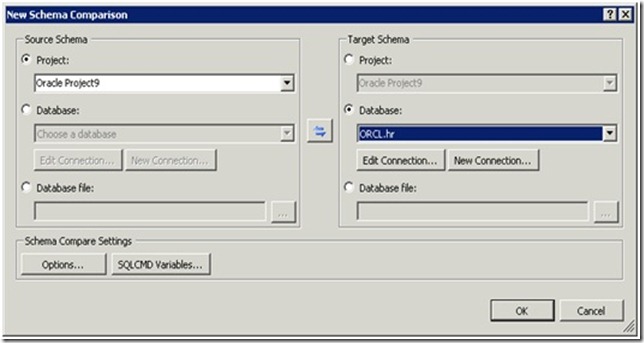
  8. Click on Data Menu à Schema Compare à New Schema Comparison
    1. schema comparison
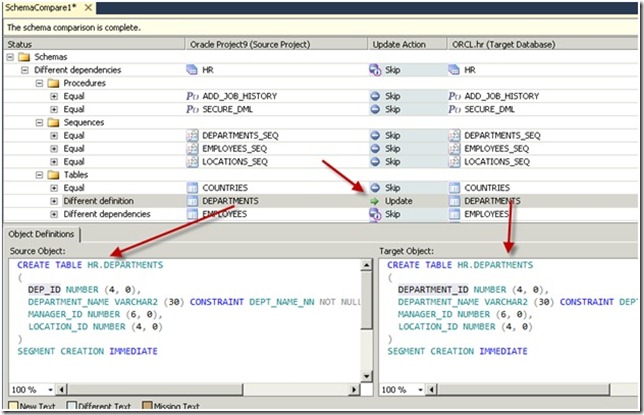
  9. After clicking on “OK” here is the layout you will get it
    1. schema comparison results1
  10. Click on the different dependencies to see its tree
    1. You will find an update action on the departments table
    2. Click on that row and it will show you the difference
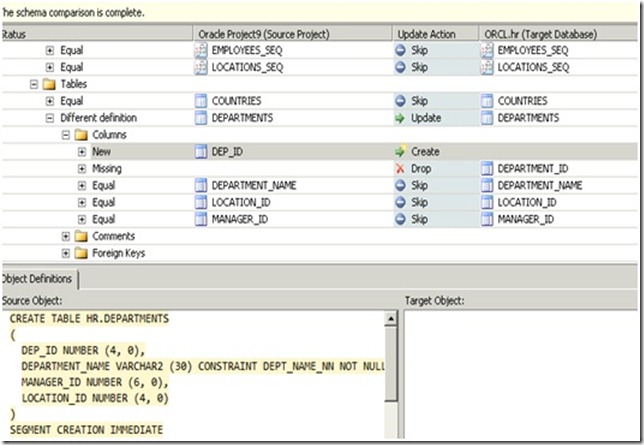
    3. Try to expand the tree for this row
    4. schema comparison results2
  11. with schema comparison you can just click update and the DB server schema will be updated, but if I were you won’t use it except if my DB is free from Data
  12. Because with schema comparison you will find in its script is a (Drop and create) and this is bad if you already have data with forced relationship ( you will definitely get errors) but the deploy script is different because it uses ALTER in its script . (will see in a while)
  13. Now let’s deploy the project by right click on the project and choose deploy
    1. if you made the connection correctly like the example I showed in Part1 then this will be smooth
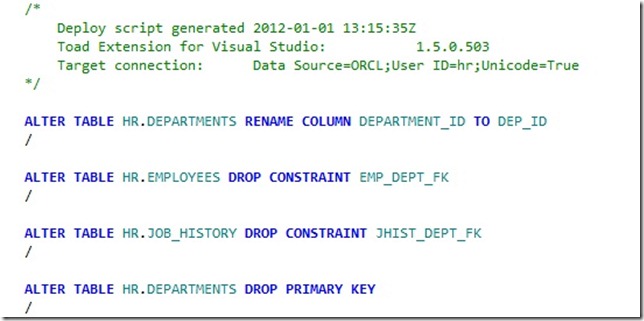
  14. if you look closely in the output screen you can see the output script for the deployment (that is you choose script and database as an output type when you made deploy DB connection), this files extension will be OSQL
    1. OSQL output
  15. As you see above the deployment script is different from the schema comparison because it use ALTER command.
Posted in Oracle DB Project, Visual Studio 2010 | Tagged , , , , , , , | 2 Comments

Oracle DB Project on Visual studio 2010 – Part1 Create Oracle DB Project

This is a series of 3 Parts to talk about creating Oracle DB Project on Visual studio 2010, try to use it with some good features of the DB Project like refactor columns and lastly to use Automated Build with this project

Part1: Creating Oracle DB Project using Toad Extensions for Visual studio.

First you will need to have

  1. Oracle DB Server (for this tutorial I used Oracle Enterprise 11g R2)
  2. Toad Extensions (Available from here http://toadextensions.com/index.jspa)

Let’s Begin Smile

  1. Open Visual Studio.
  2. New Project (Choose Database –> Oracle (Quest Software)).
  3. Configure Build/Deploy Wizard Screen will show up.
    1. Here you are configuring the project settings and how the deploy output will be and its connection.
  4. Choose the output type for the deploy (Script & Database for example)
  5. Click on New Connection to setup where you will deploy your DB.
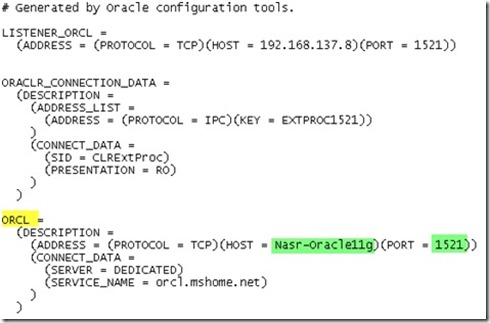
    1. Server name is the name of the connection in the Tnsname.ora (like the highlighted yellow word in the below pic)Tnsnames
    2. Write your user name and password
    3. Oracle New Connection
  6. Next Screen choose to “Import from database”
    1. to import the schema you want
  7. In the next screen of “Import Options” write the connection to the DB where you want to import its schema to use it with the DB that you identified before to deploy on it
    1. Of course both can be same DB

Now you have successfully Created Oracle DB Project.

Posted in Oracle DB Project, Visual Studio 2010 | Tagged , , , , , , | Leave a comment

Agile Scrum Flow Chart

(from my old blog)

I’m sure many of you heard or know Agile and same for the wonderful Scrum Process.we are working with Agile-Scrum in DashSoft, its really a very good way to manage a software life cycle, remember that Scrum is a Software Management process not a software development process, for more info about Scrum check this site Scrum

Anyway here is some pics of a flow chart that i made to make it easy for new and old people use scrum to find it more easier and straightforward.

First is the Agile Scrum Planning Process– and we all know this must be done at the starting of every sprint

Agile Scrum Planning

You can notice a new thing here that wasn’t said in agile scrum, its the business logic document, this document as said above its about mentioning all the business cases (logic and not logic) that anyone in the team can think of, this actually helps a lot for making testing cases, this idea came from Pedro, also CI mean Continuous Integration

Second is Daily Developer Work

Daily Developer Work

As you can see here at the beginning I’m assuming that you have a central place for communication with the team to track tasks and features , we use TFS (Team Foundation Server) , also we use style cop for naming conventions and coding analysis for few naming conventions and its rest standards for performance , localization, etc…

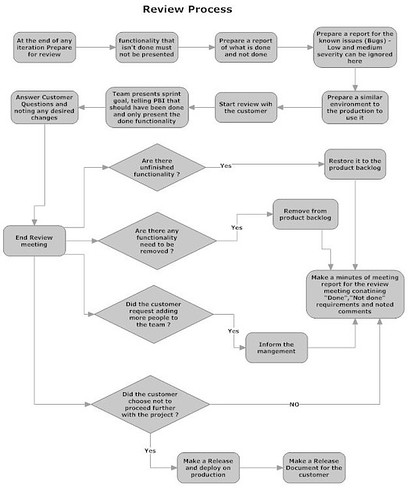
Third is Agile Scrum Review Process– where the team present the work that has been done during this sprint.

Agile Scrum Review

PBI means the Product Backlog Items which contains the features and user stories for the project, one of the main things came from experience is never to show the customer a “not done” functionality or in other word a not completed functionality , because the customer simply will give many comments about it, because they think that “ you showed it to me to say my comment’s on it or else why ?”, so for “ not done” functionality just say “sorry we couldn’t deliver in time” and never show it to them till its complete. (which should be working in the next sprint)

Fourth is Agile Scrum Retrospective or in other words how to improve the sprint and the team work and make the sprint more productive

Fifth are some conditions for sprint canceling

(This image contains both)

Agile Scrum Retrospective (Improve)

well i hope you like the flow chart , and hope it puts you fast on the track.

Posted in Agile | Tagged , , , | 1 Comment