
This is a series of 3 Parts to talk about creating Oracle DB Project on Visual studio 2010, try to use it with some good features of the DB Project like refactor columns and lastly to use Automated Build with this project
Part1: Creating Oracle DB Project using Toad Extensions for Visual studio.
First you will need to have
- Oracle DB Server (for this tutorial I used Oracle Enterprise 11g R2)
- Toad Extensions (Available from here http://toadextensions.com/index.jspa)
Let’s Begin 
- Open Visual Studio.
- New Project (Choose Database –> Oracle (Quest Software)).
- Configure Build/Deploy Wizard Screen will show up.
- Here you are configuring the project settings and how the deploy output will be and its connection.
- Choose the output type for the deploy (Script & Database for example)
- Click on New Connection to setup where you will deploy your DB.
- Server name is the name of the connection in the Tnsname.ora (like the highlighted yellow word in the below pic)
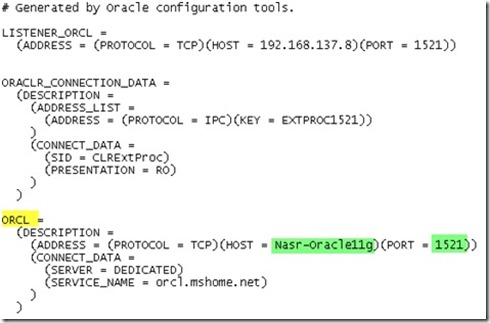
- Write your user name and password

- Server name is the name of the connection in the Tnsname.ora (like the highlighted yellow word in the below pic)
- Next Screen choose to “Import from database”
- to import the schema you want
- In the next screen of “Import Options” write the connection to the DB where you want to import its schema to use it with the DB that you identified before to deploy on it
- Of course both can be same DB
Now you have successfully Created Oracle DB Project.
Tags: ALM , Oracle DB Project , Visual studio 2010 , Oracle , TFS , TFS2010 , Toad Extensions , DB Project


 Ahmed Nasr's Blog